
Shops on the card
Near one of your shops the phone brings the card up on the lock screen, ready at the checkout. It is off until you switch it on.
- In Settings → Tieroo, switch on Show the card near our shops.
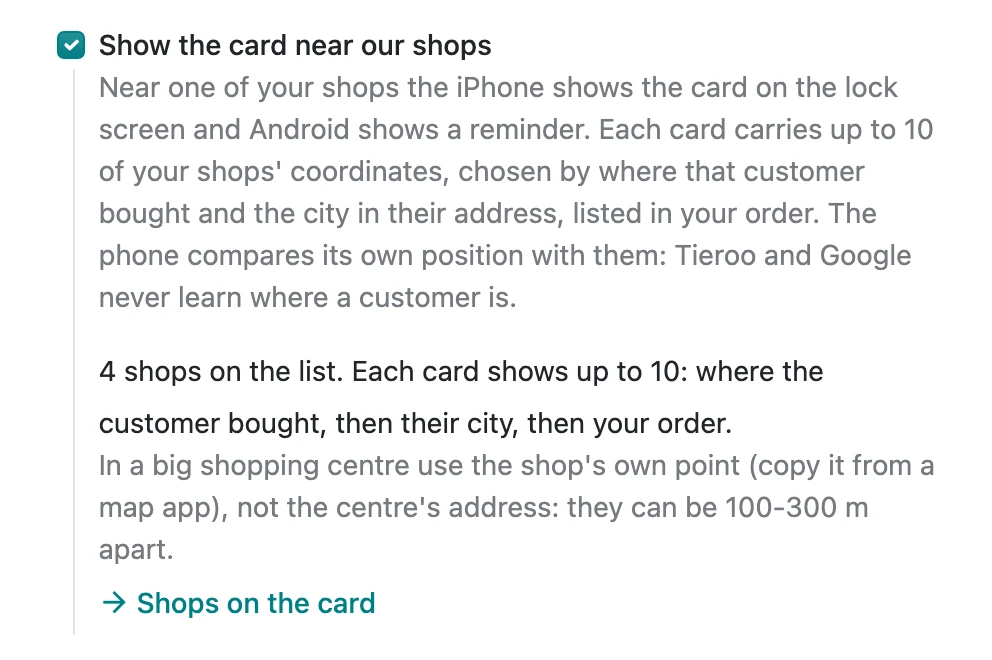
- Add your shops to Shops on the card. Each shop is an address contact with Odoo's coordinates: use Compute based on address, or copy them from a map app. In a shopping centre, use the shop's own point. Add warehouse addresses brings in your warehouses (needs Inventory).
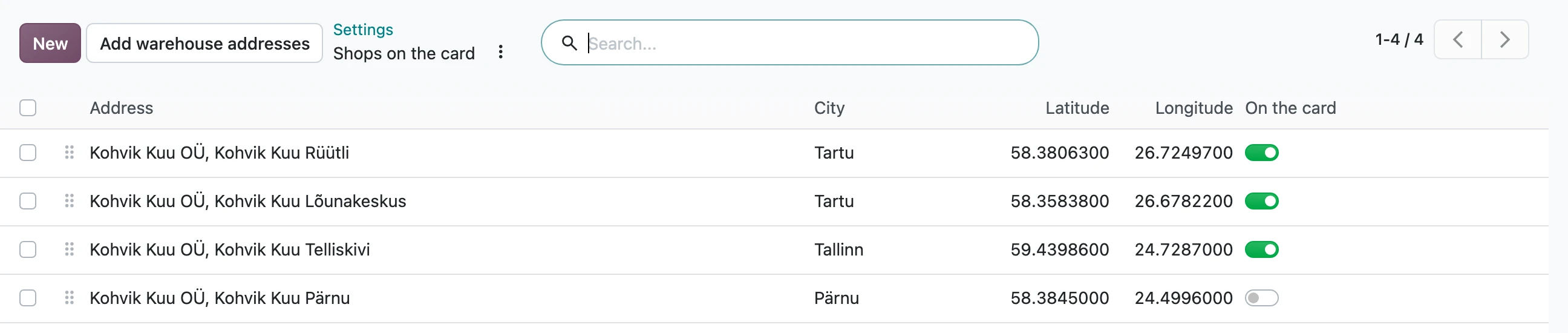
- Drag the shops into order, largest first. Switch On the card off while a shop is closed, for example for a renovation: it stays on the list.
Shops without coordinates, with impossible coordinates, and archived addresses are left out. Settings shows how many.
What the customer sees
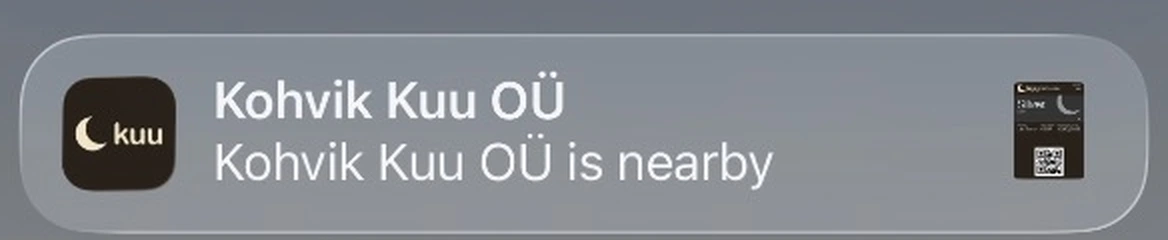
On iPhone, the card on the lock screen with your text, the same for every shop ("Kohvik Kuu is nearby", or your own from the designer). On Android, Google's own nearby notification: Google writes the text and decides the distance, and only for customers who gave Google Wallet precise location.
Which shops go on a card
Each card carries up to 10 shops, Apple's and Google's limit:
- the shops where this customer bought, most purchases first;
- then shops in the city of the customer's address;
- then your own order.
A POS purchase counts for the shop whose address is the warehouse address of its register, so add your shops with Add warehouse addresses. Online orders do not count. On Odoo 20 this needs the POS stock module (pos_stock); without it, the cards start from the city. Only the city name of the customer's address is compared; the address is never turned into coordinates.
With 10 shops or fewer, every card has all of them.
Privacy
The phone compares its own position with the shops on the card. Apple and Google send no position to Tieroo, so neither Tieroo nor you learn where a customer is.