How customers get the card
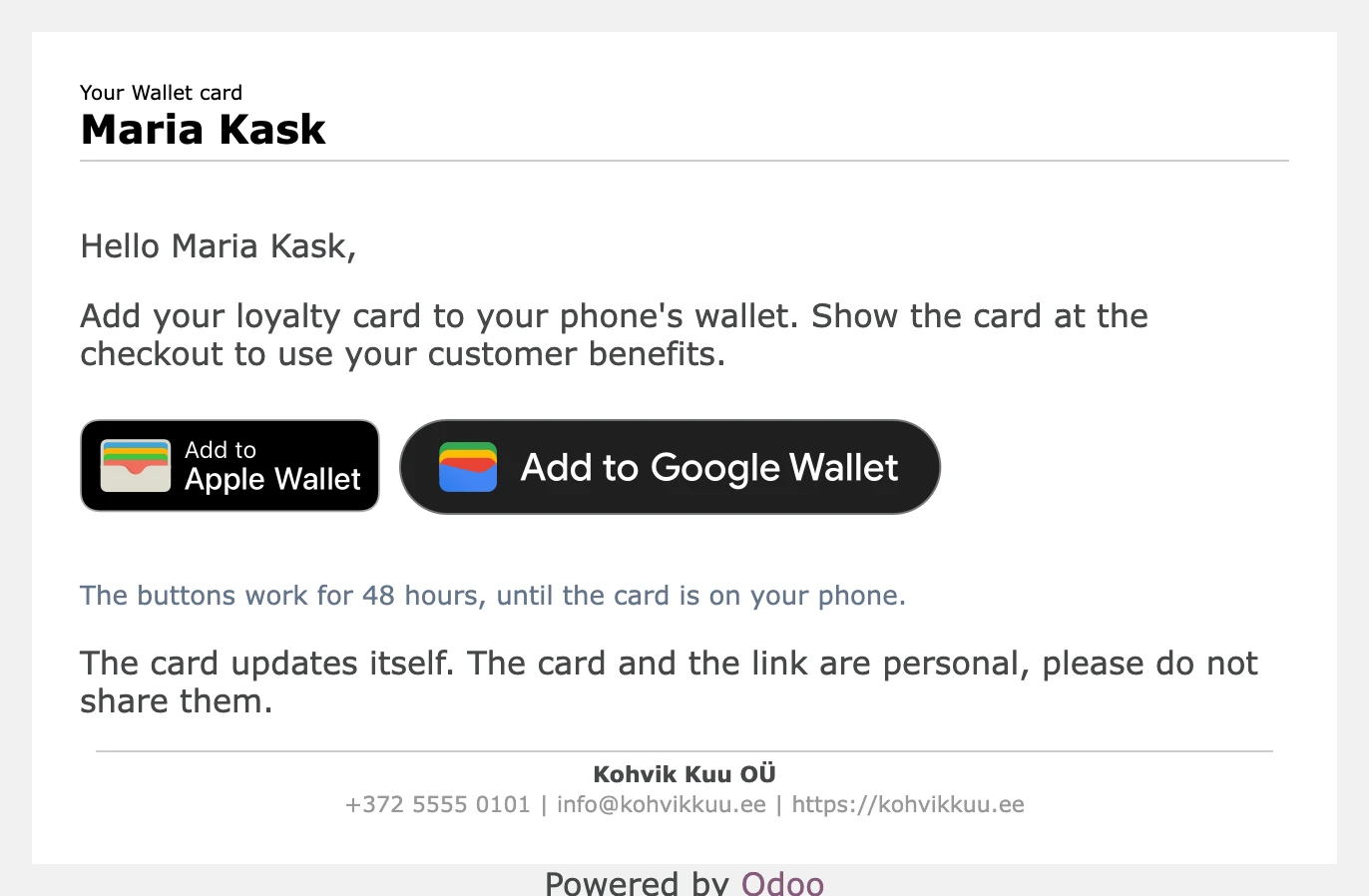
A customer gets the card in one of three ways: they scan the QR code in your shop, they become a member by buying, or you send it to them. The card always comes by email, from your own Odoo.
Joining with the QR code
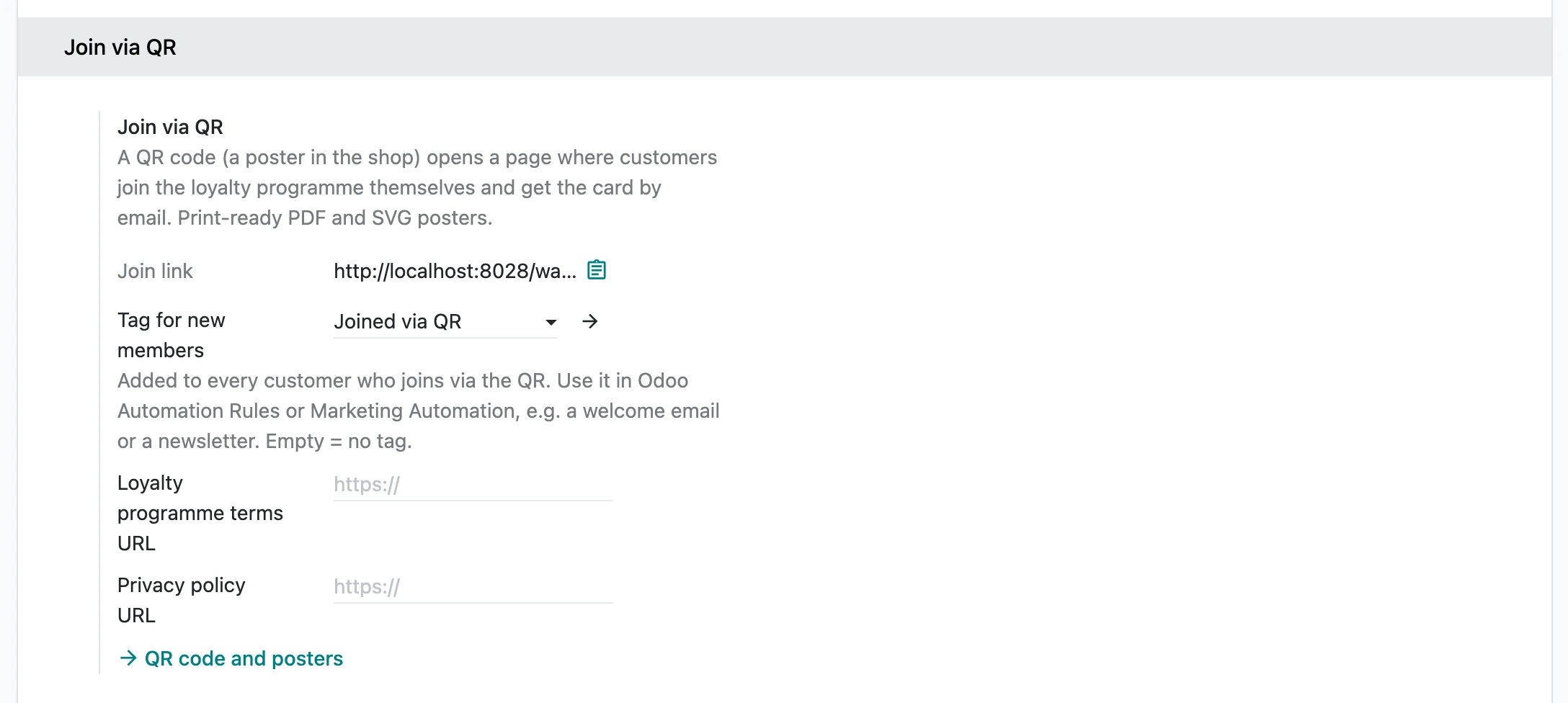
- In Odoo, open Settings → Tieroo. Under Join via QR press QR code and posters, and print a poster for the counter.
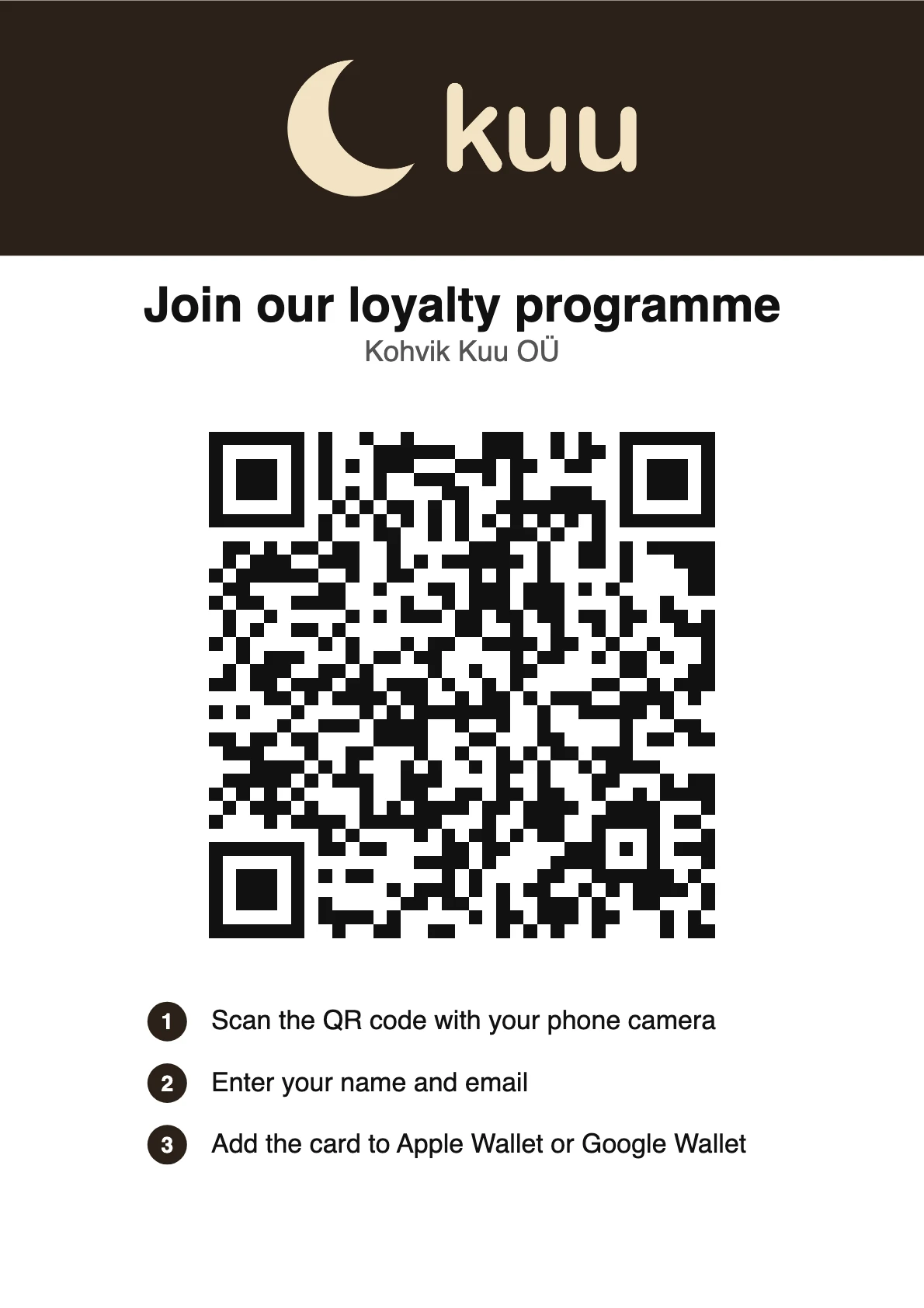
- The customer scans it and fills in name and email; the birthday is optional. The page asks them to agree to your terms and privacy policy only when you have set links to them.
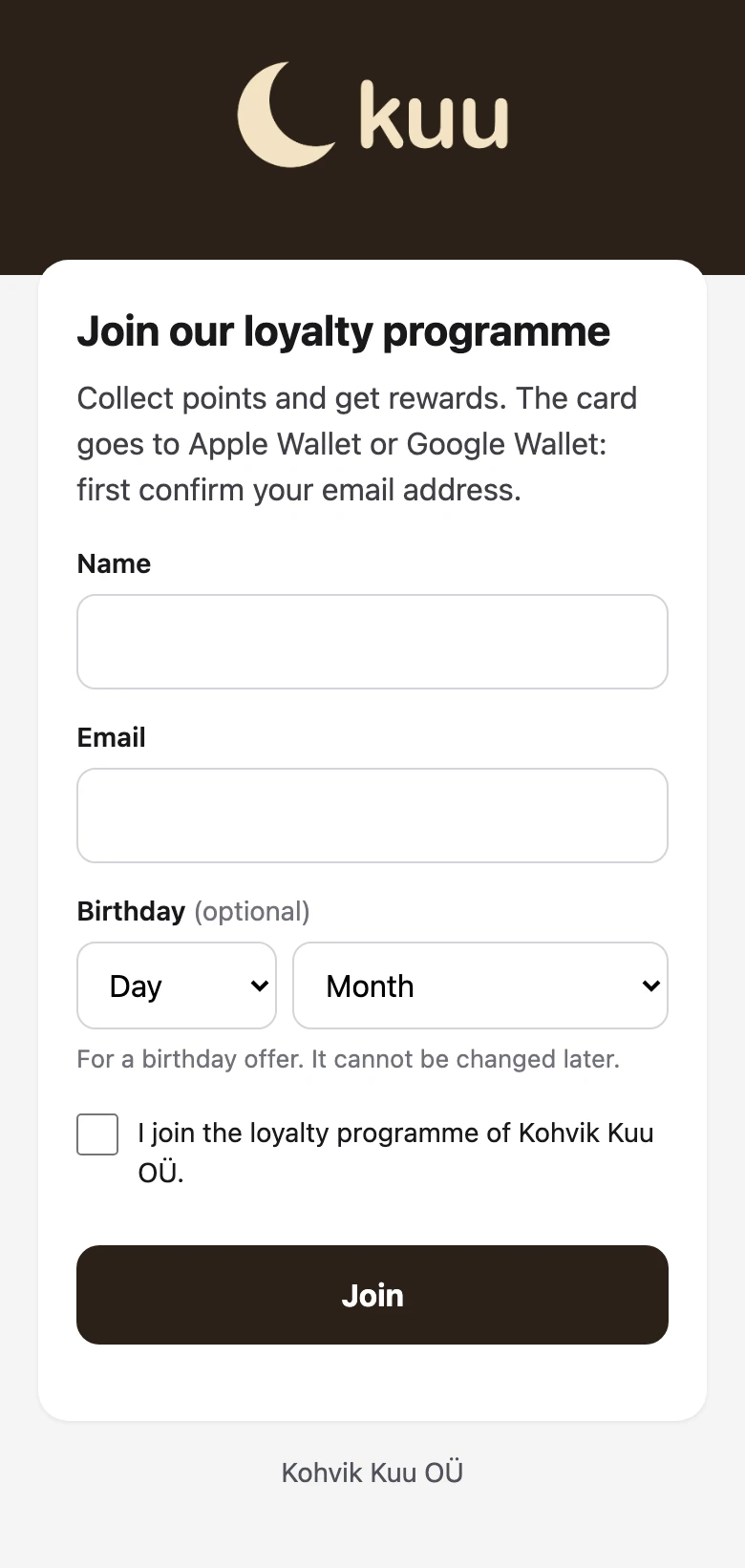
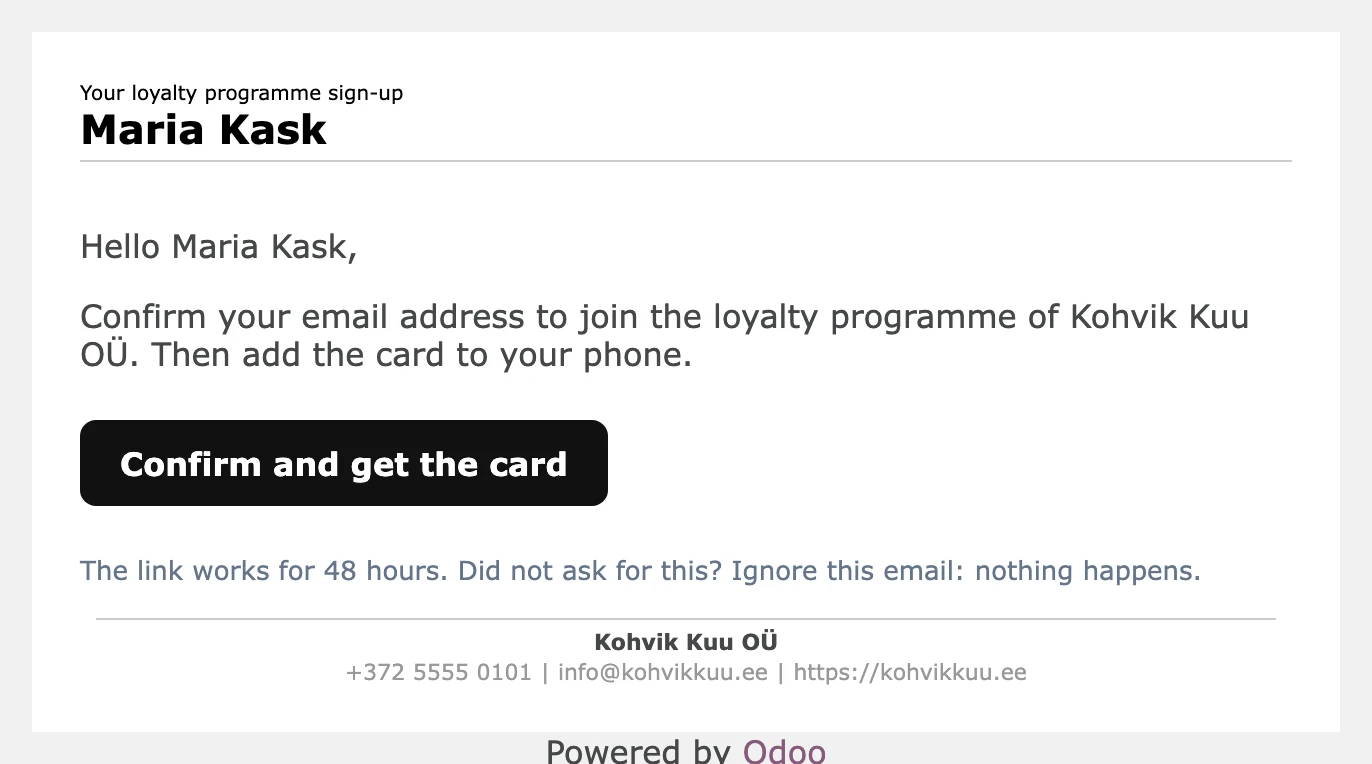
- They get the email Confirm joining. The link works for 48 hours, and nothing is created in Odoo before the click.
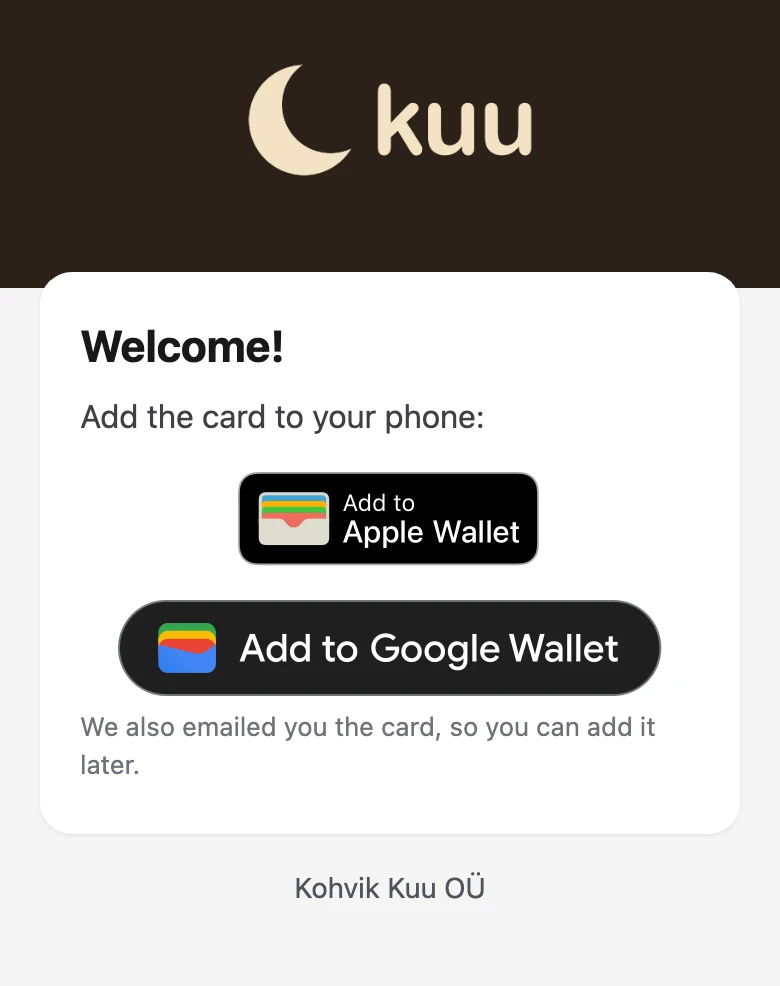
- Odoo finds or creates the customer's contact and their loyalty card, with any points they had. The page shows the Apple Wallet and Google Wallet buttons, and the card email follows.
A tag you choose under Join via QR goes on every customer who joins this way. Use it in Odoo's Automation Rules or Marketing Automation, for a welcome email or a newsletter.
A customer who left and joins again gets back their archived loyalty card with its points. To start them from zero, change the points in Odoo.
Members who join by buying
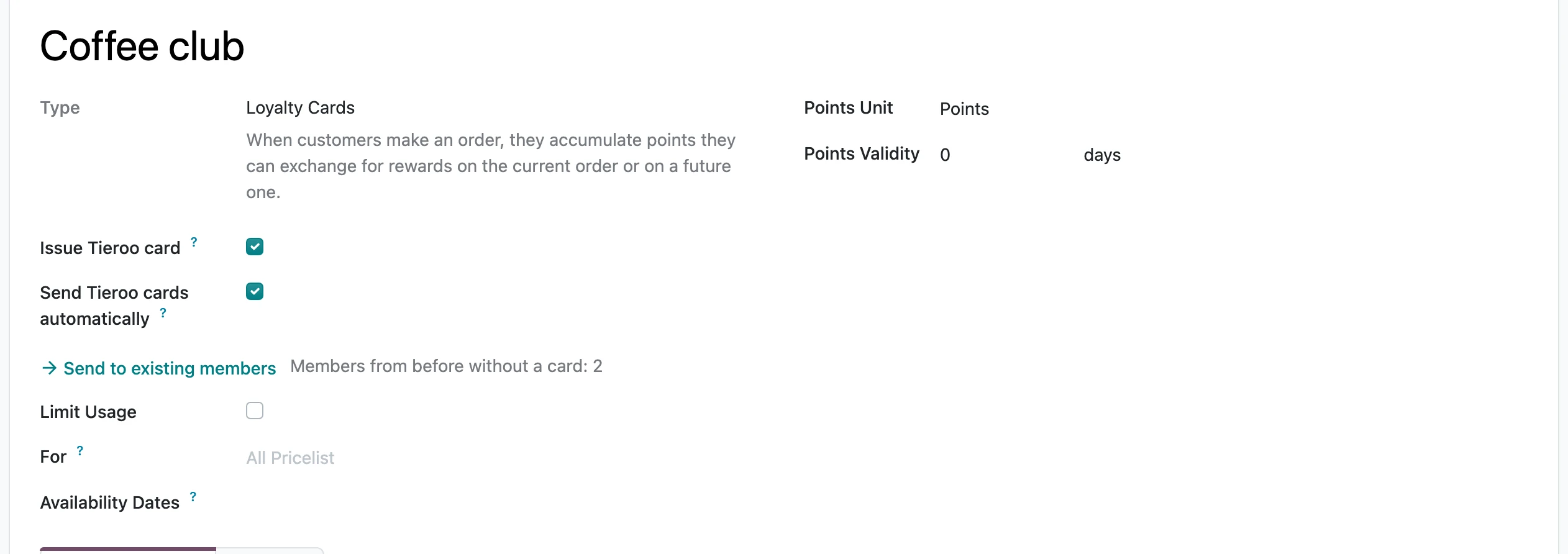
On the loyalty programme, tick Send Tieroo cards automatically. From then on, every new member with an email address gets the card email once, unless the address is on Odoo's blacklist.
Members from before get it when you press Send to existing members. Odoo shows how many there are and checks that they fit your plan. The emails go out in the background, in batches, through your own mail server, so check its daily sending limit first. Nobody gets two.
Sending the card again
On the customer's contact, press Wallet card. Odoo sends the card email again with new links. Only administrators see the button. On an address that is on Odoo's blacklist it asks first.

The card email
The email has Apple's and Google's own buttons in the customer's language. The buttons work for 48 hours and stop once the card is on a phone, so a forwarded email does not give the card to someone else. An expired link tells the customer to ask you for a new one.
The email is kept on no record and deleted after sending: employees cannot open a customer's card links. To change the text of this email or of the joining confirmation, open Settings → Tieroo → Email templates.